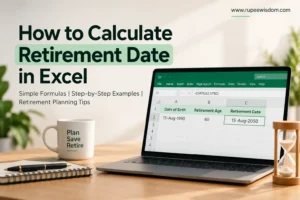
Planning for retirement begins with understanding when you want to stop working and how much time you have to prepare financially. Microsoft Excel makes it easy to calculate your expected retirement date, track the time remaining and organise your retirement goals.
If you know your date of birth and your target retirement age, you can calculate the expected date in seconds using a simple Excel formula. You do not need advanced spreadsheet skills or complicated calculations.
In this guide, you will learn how to calculate retirement date in Excel using the EDATE function, with step-by-step instructions and practical examples. You will also learn how to calculate retirement dates for multiple people, find the years remaining until retirement, troubleshoot common formula errors and estimate how inflation could affect your future expenses.
Quick answer: What is the Excel formula for retirement date?
The simplest formula is:
=EDATE(A2,12*B2)Where:
A2contains your date of birth.B2contains your target retirement age.12converts years into months.
For example, a person born on 15 August 1990 who wants to reach age 60 will reach that age on 15 August 2050.
This formula calculates the date on which the person reaches the specified age. It does not necessarily determine their official last working day, which may depend on employment rules or pension regulations.
1. How to Calculate Retirement Date in Excel Using EDATE
The EDATE function moves a date forward or backward by a specified number of months. It is useful for calculating dates that depend on a starting date, such as anniversaries, maturity dates and retirement-age milestones.
Microsoft documents EDATE as a function that returns a date a specified number of months before or after a starting date.
Step 1: Enter your date of birth
Open Microsoft Excel and create a worksheet with these headings:
| Cell | Heading | Example value |
|---|---|---|
| A1 | Date of Birth | |
| B1 | Target Retirement Age | |
| C1 | Expected Retirement Date | |
| A2 | Date of Birth | 15-Aug-1990 |
| B2 | Target Retirement Age | 60 |
Enter the date of birth in cell A2 and the target age in cell B2.
Step 2: Enter the retirement date formula
Click cell C2 and enter:
=EDATE(A2,12*B2)Press Enter.
Excel adds 720 months, equivalent to 60 years, to the date of birth.
Expected result: 15 August 2050.
This is one of the easiest ways to calculate retirement date in Excel because you can change the retirement age without rewriting the formula.
Step 3: Format the result as a date
If Excel displays a number such as 55000 instead of a readable date, the calculation may be correct but the cell format may be wrong.
To fix it:
- Select cell C2.
- Press
Ctrl + 1. - Select Date.
- Choose a suitable date format, such as
15-Aug-2050. - Click OK.
You can also choose a custom format such as dd-mmm-yyyy.
Step 4: Make the formula reusable
If you want to calculate dates for different retirement ages, simply change the value in B2.
For example, enter 55 instead of 60. The formula will recalculate the date on which the person reaches age 55.
You can use the same method for retirement planning at ages 50, 55, 58, 60 or 65. The appropriate age depends on your personal goal and, where relevant, the applicable employment or pension rules.
2. Retirement Date Formula in Excel: More Worked Examples
Let’s look at several examples to understand how the formula works.
| Date of birth | Target age | Expected date of reaching that age |
|---|---|---|
| 15-Aug-1990 | 60 | 15-Aug-2050 |
| 20-Mar-1985 | 58 | 20-Mar-2043 |
| 10-Jan-1992 | 60 | 10-Jan-2052 |
| 05-Dec-1980 | 55 | 05-Dec-2035 |
These dates are calculated by adding the target age in years to the date of birth. They are illustrative examples rather than official retirement dates.
What if the birthday is on 29 February?
Leap-year birthdays need special attention.
For example, if a person was born on 29 February and the target year is not a leap year, EDATE returns the last valid day of February, which is 28 February.
That result may be appropriate for a general date calculation, but official retirement rules may specify a different treatment. Always check the applicable rule if the date will be used for employment, pension or legal purposes.
3. How to Calculate Retirement Dates for Multiple Employees
You can use Excel to calculate retirement dates for an entire employee list.
Create a table with the following columns:
| A: Employee | B: Date of birth | C: Retirement age | D: Expected date |
|---|---|---|---|
| Employee 1 | 15-Aug-1990 | 60 | Formula |
| Employee 2 | 20-Mar-1985 | 58 | Formula |
| Employee 3 | 10-Jan-1992 | 60 | Formula |
In cell D2, enter:
=EDATE(B2,12*C2)Press Enter and drag the fill handle down the column to copy the formula for the other employees.
Each row will use the date of birth and retirement age entered in that row.
Can you use different retirement ages in the same worksheet?
Yes. You do not need to use one fixed retirement age for everyone. If one employee has a target age of 58 and another has a target age of 60, the formula calculates each date using its own row.
This method is useful for preliminary HR planning. However, an organisation’s official retirement date may depend on its service rules, contract, applicable law and the way it treats the month of retirement. Verify those rules before relying on a spreadsheet for formal decisions.
4. How to Calculate Years Until Retirement in Excel
Sometimes you do not need an exact date. You may simply want to know approximately how many years remain before you reach your target age.
Suppose:
- Cell A2 contains your current age.
- Cell B2 contains your target retirement age.
Use:
=MAX(0,B2-A2)If you are 42 and plan to retire at 60, the result is 18 years.
The MAX function prevents the formula from returning a negative number when your current age is greater than your target age.
However, this calculation uses whole-year ages. It does not give the exact remaining time in years, months and days.
Calculate the date using your current age
If you do not have your date of birth available, you can estimate the date using your current age and target age.
Suppose A2 contains your current age and B2 contains your target retirement age.
=EDATE(TODAY(),12*MAX(0,B2-A2))This formula uses today’s date as the starting point and adds the approximate number of years remaining.
Important: This is only an estimate. Your current age alone does not reveal exactly how far away your next birthday is. Use your full date of birth when you need a more precise result.
5. How to Calculate the Exact Time Remaining Until Retirement
Once you have an expected retirement date, you can create a retirement countdown in Excel.
Suppose cell C2 contains your retirement date.
Calculate complete years remaining
=IF(C2<=TODAY(),0,DATEDIF(TODAY(),C2,"Y"))This returns the number of complete years between today and the target date. It returns zero if the date has passed.
Calculate remaining months
=IF(C2<=TODAY(),0,DATEDIF(TODAY(),C2,"YM"))This returns the number of additional months after complete years.
Calculate remaining days
=IF(C2<=TODAY(),0,DATEDIF(TODAY(),C2,"MD"))This returns the remaining days after complete years and months.
These formulas can be used to display a countdown such as:
18 years, 4 months and 12 days until your target retirement date.
The exact result depends on the date entered in C2 and the day on which the workbook is opened.
Note that DATEDIF is an older Excel function that is available in Excel but may not appear in the function autocomplete. Ensure the start date is earlier than the end date to avoid errors.
6. How to Calculate Only the Retirement Year in Excel
Sometimes you may need only the year in which a person reaches the target retirement age.
If A2 contains the date of birth and B2 contains the retirement age, use:
=YEAR(EDATE(A2,12*B2))For a person born on 15 August 1990 with a target age of 60, the formula returns:
2050
This can be useful when preparing a summary of retirement years for several employees.
If you already calculated the retirement date in C2, you can simply use:
=YEAR(C2)This extracts the year from the calculated date.
7. How to Calculate the Last Day of a Retirement Month
Some organisations do not use the birthday itself as the official retirement date. Their rules may specify the last day of the month in which an employee reaches the retirement age.
Excel’s EOMONTH function returns the last day of a month.
If A2 contains the date of birth and B2 contains the target age, the following formula returns the last day of the month in which the person reaches that age:
=EOMONTH(A2,12*B2)For a person who reaches the target age on 15 August 2050, the result is 31 August 2050.
This is a mathematical date calculation, not a statement of any employer’s official policy. Some organisations use different rules, including special treatment for employees born on the first day of a month. Check the relevant service regulations before using this formula for official purposes.
8. Common Excel Errors When Calculating Retirement Dates
If your formula does not work, check the following issues.
Error 1: Excel displays a serial number
Excel stores dates as sequential numbers. A formula may therefore display a number rather than a formatted date.
Solution: Select the result cell and change its number format to Date.
Error 2: The formula returns #VALUE!
This can happen if the date of birth is stored as text rather than a valid Excel date.
Solution: Re-enter the date using a recognised date format, or construct a date with the DATE function.
For example:
=DATE(1990,8,15)This creates the date 15 August 1990 without relying on how a typed date is interpreted by your regional settings.
Error 3: The wrong retirement date appears
Check that the date of birth is in the correct cell and that the retirement age is entered as a number.
For example, if the formula refers to B2 but the retirement age is actually in C2, the result will not reflect your intended calculation.
Error 4: The date changes unexpectedly
If you use the TODAY function, the result changes as the current date changes. This is normal.
If you want to calculate a date based on a fixed date of birth, use that date as the starting point rather than TODAY.
Error 5: The formula is not calculating
Check that Excel’s calculation mode is set to Automatic. Also ensure the formula starts with an equals sign and that the cell is not formatted as Text.
Error 6: The formula works on one row but not another
When copying a formula down, make sure each row contains a valid date and retirement age. If you use fixed references, check whether dollar signs are preventing the references from changing.
9. After Calculating Your Retirement Date: Plan for Future Expenses
Knowing your retirement date is useful, but it does not tell you whether you will have enough money to retire comfortably.
Once you know how to calculate retirement date in Excel, you can use the years remaining before retirement to estimate future expenses, review your savings and plan your investments.
Inflation is important because the cost of living may increase substantially over a long period.
Example: Calculate future monthly expenses
Suppose your current monthly household expenses are ₹40,000. You assume annual inflation of 6% and have 20 years until retirement.
Use this formula:
=A2*(1+B2/100)^C2Enter:
| Cell | Description | Value |
|---|---|---|
| A2 | Current monthly expenses | 40000 |
| B2 | Assumed annual inflation (%) | 6 |
| C2 | Years until retirement | 20 |
The formula gives an estimated future monthly expense of approximately ₹1.28 lakh.
This is a mathematical illustration. Actual inflation will vary, and individual expenses such as healthcare, housing and travel may rise at different rates.
Why should you calculate future expenses?
If you plan to retire in 20 years, your current monthly spending may not be a realistic estimate of what you will need at that time.
Consider estimating:
- Essential household expenses.
- Healthcare and insurance costs.
- Housing and maintenance.
- Travel and lifestyle spending.
- Support for family members.
- Unexpected costs and a financial buffer.
A retirement budget should reflect your circumstances rather than relying on one general inflation assumption.
10. How Much Retirement Corpus Do You Need in India?
Your retirement corpus is the money and investments available to support your expenses after you stop working.
There is no single amount that is sufficient for every person. Your target depends on your expected spending, retirement age, income sources, investment returns, inflation and how long your savings need to last.
For a useful starting plan, review these questions:
- What are your current monthly expenses?
- How much might those expenses rise before retirement?
- What savings and investments do you already have?
- How much can you contribute each month?
- Do you expect a pension, rental income or other dependable income?
- How many years might you need to fund after retirement?
- What happens if inflation is higher or investment returns are lower than expected?
Avoid treating a simple rule of thumb as a guaranteed answer. A proper retirement projection should consider the timing of contributions and withdrawals, changing expenses, taxes where relevant and uncertainty in investment returns.
What if your projected savings are insufficient?
If your estimated retirement savings fall short of your target, you may be able to explore several options.
Increase monthly contributions. Even a manageable increase may improve the projected result over time.
Increase contributions as income grows. A planned annual increase can help you direct part of future income growth towards retirement.
Review your target retirement age. Working longer may give you additional time to save and reduce the period your savings must support.
Review your expenses. Separate essential spending from discretionary costs while keeping healthcare and unexpected expenses in mind.
Test less optimistic assumptions. Examine what happens when inflation is higher, investment returns are lower or retirement lasts longer than expected.
These options do not guarantee a particular outcome. Choose assumptions that are realistic for your financial situation.
11. Use the RupeeWisdom Retirement Roadmap Excel Workbook
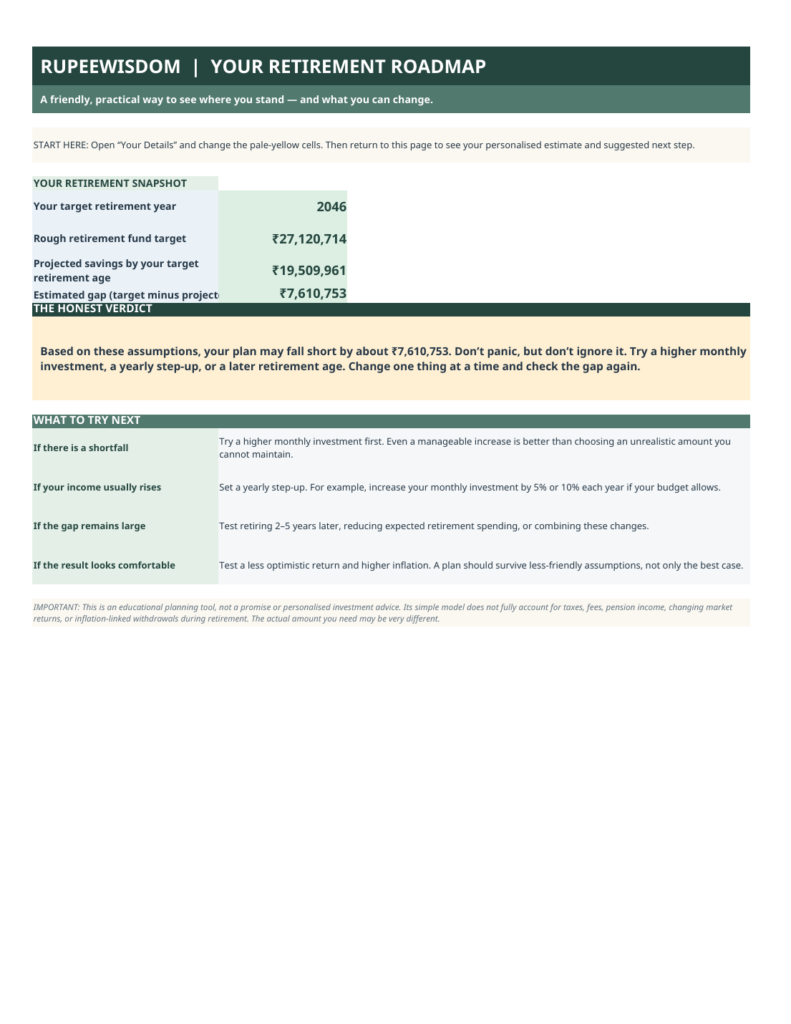
The basic Excel formulas in this guide help calculate retirement dates and countdowns. If you also want to organise your savings assumptions, future expenses and retirement scenarios, the RupeeWisdom Retirement Roadmap Excel Workbook is designed to help you take the next step.
Instead of keeping several calculations in separate files, the workbook brings retirement-planning inputs and projections together in one place.
The workbook is intended to help you review:
- Retirement planning inputs: Your age, target retirement age, savings and expenses.
- Future living costs: How different inflation assumptions may affect expenses.
- Savings projections: How savings could develop under the assumptions entered.
- Contribution increases: The potential effect of increasing contributions over time.
- Alternative scenarios: How different planning assumptions may change the projected outcome.
- A planning snapshot: A summary of your inputs and projected position.
The workbook’s results depend on its formulas and the assumptions you enter. It should be used for educational planning rather than as a guarantee of future returns or a substitute for personalised financial advice.
Who may benefit from this workbook?
It may be useful if you are:
- Planning to retire early or work towards financial independence.
- Organising your retirement savings in Excel.
- Exploring the impact of inflation on your future spending.
- Reviewing whether your current contribution plan may be sufficient.
- Comparing different savings and retirement assumptions.
Get the RupeeWisdom Retirement Roadmap Excel Workbook — ₹599
Take a more structured approach to retirement planning by organising your assumptions, reviewing projected savings and exploring alternative scenarios.
12. Frequently Asked Questions
What is the formula for how to calculate retirement date in Excel?
Use =EDATE(A2,12*B2), where A2 contains the date of birth and B2 contains the target retirement age. Format the result cell as a date.
How do I calculate retirement date at age 60 in Excel?
Enter the date of birth in A2 and 60 in B2. Then enter =EDATE(A2,12*B2) in the result cell.
Can Excel calculate retirement dates for multiple employees?
Yes. Put each employee’s date of birth and target retirement age in separate rows. Use =EDATE(B2,12*C2) in the first result row and copy the formula down.
How do I calculate years remaining until retirement?
If A2 contains your current age and B2 contains your target retirement age, use =MAX(0,B2-A2) for an approximate whole-year result.
How do I calculate the retirement year only?
Use =YEAR(EDATE(A2,12*B2)) to return the year in which a person reaches the target age.
Why does Excel show a number instead of a date?
Excel stores dates as serial numbers. Change the cell’s number format to Date to display a readable date.
Can I calculate retirement date without a date of birth?
You can estimate it using your current age and target retirement age, but the result may be inaccurate because your exact birthday is unknown. Use a full date of birth for a more precise calculation.
Does the Excel retirement date formula determine my official retirement date?
Not necessarily. The formula calculates the date on which you reach a chosen age. Your official retirement date may depend on employment rules, pension eligibility or other applicable requirements.
Can Excel help me estimate my retirement corpus?
Yes. Excel can model future expenses, savings contributions and projected investment growth. However, the result depends on the assumptions and formulas used and is not a guarantee of future performance.
Is the RupeeWisdom Retirement Roadmap an investment recommendation?
No. It is intended as an educational planning tool. It does not guarantee investment results or replace personalised financial advice.
Conclusion
Learning how to calculate retirement date in Excel is a practical first step towards planning your financial future. The EDATE function lets you calculate your expected retirement date, while other Excel formulas help you estimate the time remaining and organise your retirement timeline.
However, knowing the date is only the beginning. Your future expenses, inflation, savings contributions, investment uncertainty and retirement duration all matter when estimating how much money you may need.
Start with the basic formula, review your assumptions and update your plan as your circumstances change. A clear, realistic spreadsheet can help you make better-informed decisions about your future.
Disclaimer: This article is for educational purposes only. Excel calculations and retirement projections are estimates based on the inputs and assumptions used. They are not guarantees of future results or personalised financial advice.